 TailorPDF
My first campaign
We provide a certificate PDF template and sample data so you can test TailorPDF yourself. Once registered in the Toolbox, start your first campaign.
Create a campaign
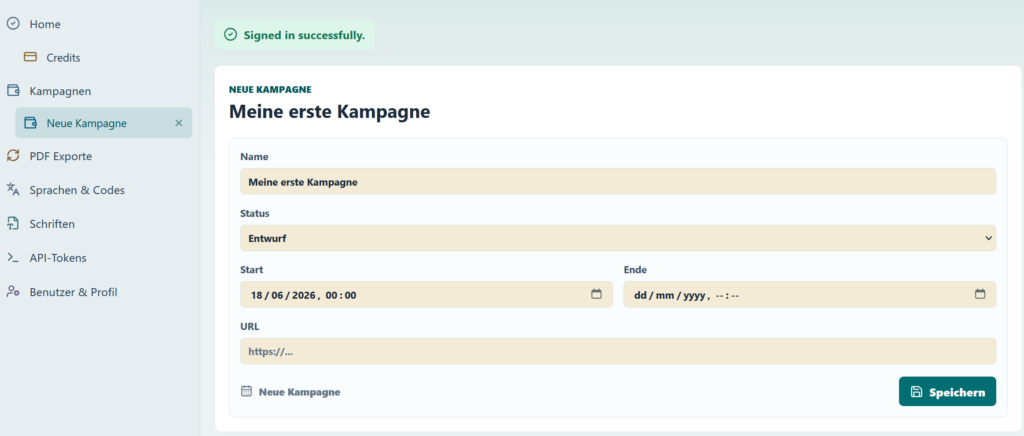
Select Campaigns, then New campaign. Give it a name, for example "my first test". Its initial status is Draft. Status affects behaviour. Start and end dates define when customers can retrieve PDFs once the campaign is published. Save the campaign.

Add a template
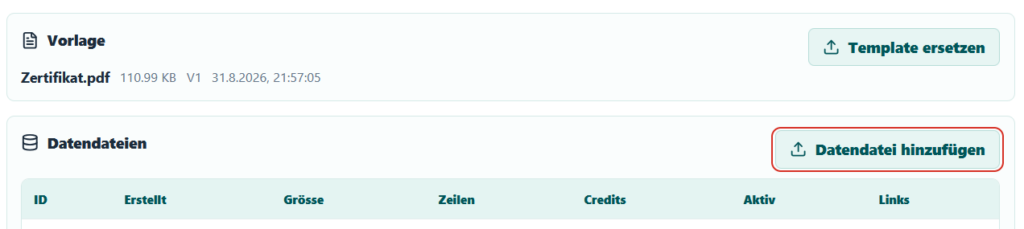
After saving, upload a PDF template. Download the sample certificate, click "Upload template" and select the local PDF.


Click the template row for details. The template appears below the open campaign in the left navigation. Its editor lists available fields and QR options.
Import data files
- Upload a data file to the Toolbox.
- Start the import: the wizard checks the format, reads records and assigns external keys.
- Download the data file with its keys and use it in your newsletter tool to deliver documents to recipients.
At least one data file is required. Download
You can inspect, modify or add rows locally. The examples retain their original German filenames.
Click "Add data file" and upload it. Repeat to upload both files if desired. Select Import to load the records. Our larger example contains five rows.
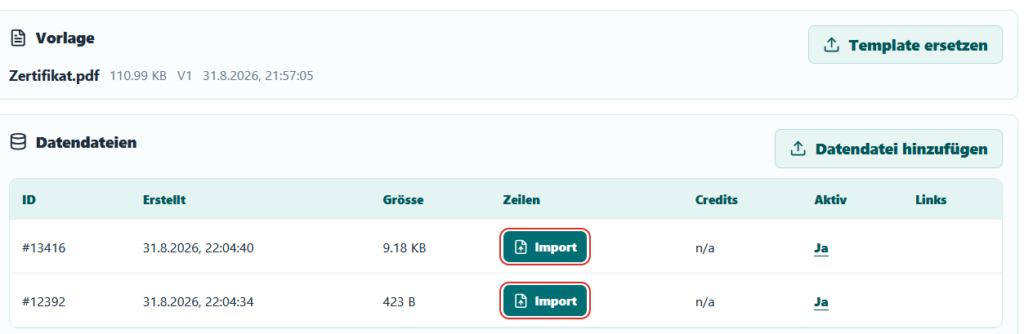
Click a data file to open it and pin it below the campaign in the navigation. Filter records and preview PDFs, depending on campaign status. You can already download the augmented file using the icon under Links.

The download adds an external key identifying each record, a download_url and a verify_url. Keys are complex and difficult to guess. Verification allows a printed document's QR to open its verification page. Use the exported file with your mailing system to inform recipients about their personalised PDFs.
Each download URL is intended for its recipient. The source format is preserved: currently tab-separated text or Excel.
Test and publish
- Set the campaign to Test for unrestricted internal testing; customers cannot download yet.
- Set it to Published to allow customers to download. Save after each status change.
Publishing checks that sufficient credits are available and initially reserves them. Within eight cumulative published hours, return to Test to release reservations. Once a campaign accumulates eight published hours it automatically becomes Frozen and credits are definitively charged.

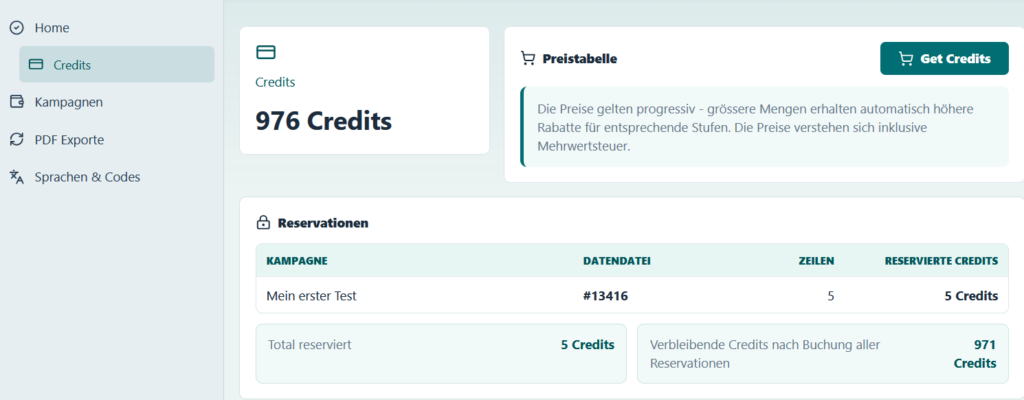
The Credits menu shows which credits belong to which campaign. The next guide explains how to create a processable PDF template from your data and an existing PDF.