 TailorPDF
Create Swiss QR invoices using a PDF template
Create Swiss QR invoices using a PDF template
This tutorial creates personalised PDFs with a Swiss QR for payments. Creditor and account details can stay the same for all documents; debtor address, reference and optional amount come from your data file.
Use the sample PDF template as a reference. Our example uses a receipt and payment section and columns InterneID, Name, Strasse, Nummer, PLZ, Ort, Land, Betrag and Ref-Zeile. Preserve these names in the placeholders if you use this example data.
Important: TailorPDF creates the Swiss QR and inserts it into the template. The complete payment-section layout, labels and readable payment details must already be in the PDF or personalised through form fields.
Step 1: Prepare the PDF template
Use suitable form fields and place placeholders in their default values, not just visible page text. For the debtor address:
{{Name}}
{{Strasse}} {{Nummer}}
{{Land}}-{{PLZ}} {{Ort}}
For the visible reference use {{Ref-Zeile}}. If details appear in both receipt and payment section, put placeholders in both fields. Our sample already contains the address and reference placeholders.
Visible PDF information and QR data must match. TailorPDF does not add visible payment details merely because you entered them in QR settings.
Step 2: Prepare the data file
One row represents one document; the first row contains column names. Example: InterneID ORG-0001; Name Stiftung Alpenhilfe; Strasse Bahnhofstrasse; Nummer 12; PLZ 8001; Ort Zürich; Land CH; Ref-Zeile 21 00000 00003 13947 14300 09017; Betrag empty.
Use a supported Excel file or comma- or tab-separated text. A fixed amount can be 125.50, or leave it empty. Store references as text to preserve leading zeros. An empty amount lets the payer enter one; our example leaves all amounts empty.
Step 3: Set Swiss QR defaults
Under Settings – Parameters, enable the desired Swiss QR default configuration. Only the organisation's first user can edit these parameters. Organisation-wide defaults are copied to or overridden by each template. Enable QR1 or QR2 first, then enter creditor IBAN or QR-IBAN, creditor name and structured address, currency, reference type and any additional message.
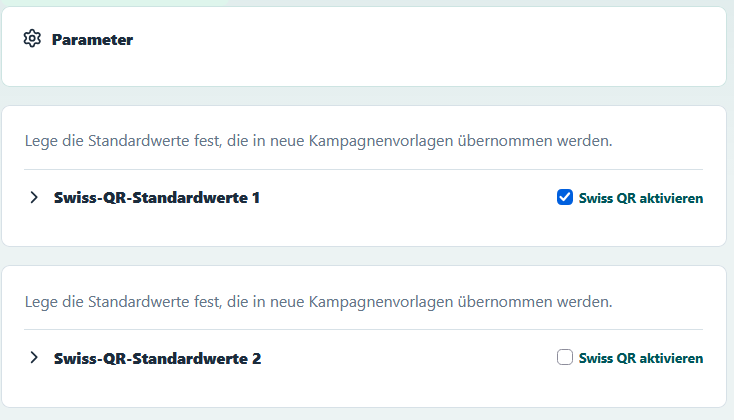
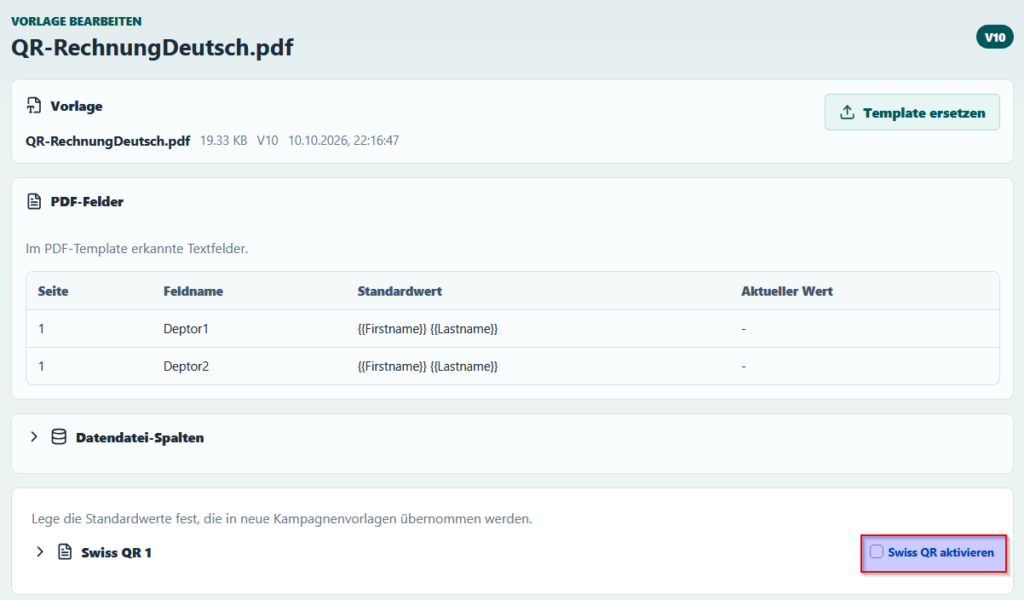
Use only account details and references designated by your bank. Defaults are a starting point: check them again in the campaign template. Changing defaults does not automatically update existing templates. Only instances enabled in defaults can be enabled for a template; in our example only Swiss QR 1 is enabled.
Step 4: Upload the template and enable Swiss QR
Upload the PDF, open template settings and enable Swiss QR in the corresponding section. Verify the copied values and save. Swiss QR and authenticity QR are independent; a payment invoice does not necessarily need an authenticity QR.
Step 5: Connect payment details to data columns
For debtor name, street, building number, postal code, city and country use {{Name}}, {{Strasse}}, {{Nummer}}, {{PLZ}}, {{Ort}} and {{Land}}. Use {{Ref-Zeile}} for the reference.
QR-reference payments require type QRR and a matching QR-IBAN. Leave the amount empty, set a fixed amount such as 125.50, or use {{Betrag}}. Do not use thousands separators or currency abbreviations in the amount field.
Step 6: Position the Swiss QR
For an unrotated A4 page, X is measured from the left edge and Y from the bottom edge; size is the square side length and page numbering starts at 1. Start with page 1, X 68 mm, Y 42 mm and size 46 mm.
Position must match the actual template. Keep a clear white zone of at least 5 mm around the QR; labels, lines and other QR codes must not overlap it. Position is configurable, for example for a portrait A4 page cut in half with the QR above. Use the standard example values for a QR at the bottom of A4.
Step 7: Verify the result
- Are the addresses correct in the receipt and payment section?
- Is the reference complete?
- Do visible account details, amount and currency match the QR?
- Is the QR complete and unobstructed?
- Does a banking app correctly recognise creditor, account, reference and amount?
- Are size and layout correct when printed at 100% / actual size?
Check both individual preview and the download or export version actually used. A successfully generated PDF alone does not confirm a correct QR invoice. TailorPDF cannot be held responsible for incorrect QR settings: verify them before publishing. Consult the official SIX QR-bill requirements.